


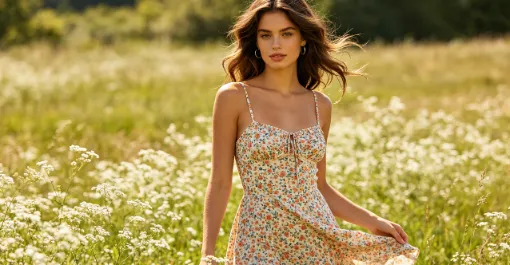

We’ve all been there: you have the perfect photo, but the aspect ratio is all wrong for your social post, or the frame is so tight you have no space left for your marketing text.
In the past, you’d have to settle for a weird crop or spend hours in professional editing software. But today, AI Outpainting tools can "imagine" what lies beyond the borders of your original photo, extending the background while keeping the lighting, shadows, and perspective looking natural.
If you’re ready to stop compromising on your visuals, here are the top 7 AI tools to get the job done in 2026.
🤑Top 7 AI tools to get the job done in 2026
1. Wann.ai: The All-in-One Powerhouse
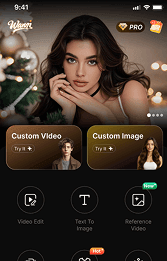
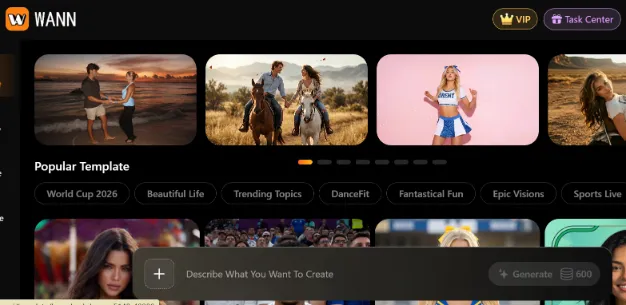
If you’re tired of jumping between five different apps to get one image ready, this is your new go-to. Wann.ai isn't just an extension tool; it’s an end-to-end production ecosystem.
- Why it wins: It’s built for pros. You can use text prompts to guide exactly what the AI adds to the new space—perfect for product shots or landing pages that need a specific look.
- Best for: Creators and e-commerce teams who need to generate, edit, and batch-process visuals without losing their minds.
2. Adobe Firefly (Generative Expand)
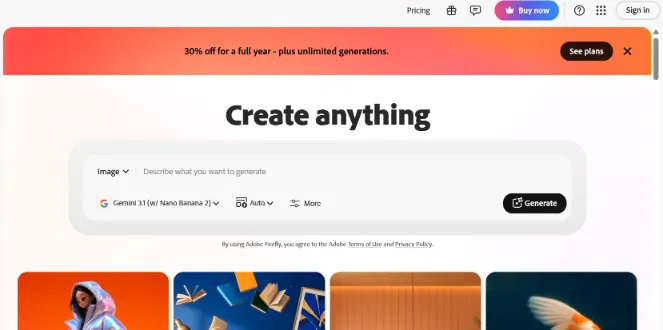
The industry standard for a reason. Because it’s baked right into Photoshop, it’s the go-to for designers who need to keep their work organized in layers.
- Why it wins: You get incredible control. If the AI adds something you don’t like, you can tweak it at a pixel level.
- Best for: Professional photographers and designers who need high-precision edits for commercial work.
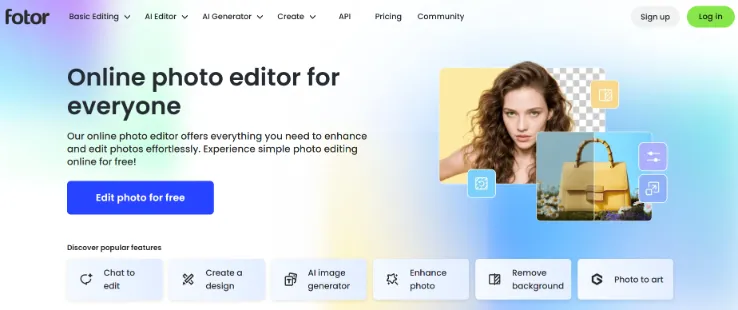
3. Fotor
Fotor is all about speed. It’s the "get it done now" tool.
- Why it wins: The interface is super simple. You don’t need to be a tech genius to figure it out.
- Best for: Quick fixes when you just need to turn a square photo into a landscape format for a quick social update.
4. Canva Magic Expand
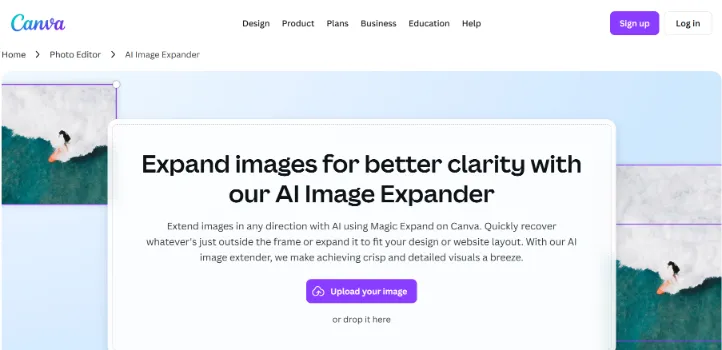
If you live your life in Canva, this is a no-brainer. It’s built directly into the design workflow.
- Why it wins: Convenience. You can fix your image composition while you’re already in the middle of designing your presentation or poster.
- Best for: Small business owners and non-designers who want to make their visuals look better without the learning curve.
5. OpenArt
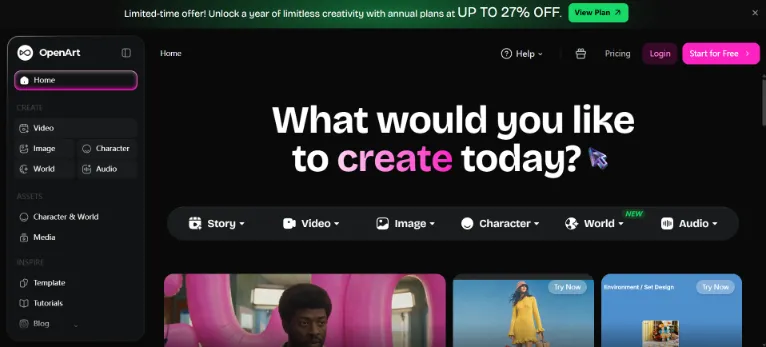
OpenArt is for the visionaries. It’s less about "fixing" photos and more about creative exploration.
- Why it wins: It’s incredibly flexible with artistic styles. If you want your image to feel more like a painting or a concept art piece rather than a realistic photo, this is your playground.
- Best for: Digital artists and content creators who want to experiment with different aesthetics.
6. Clipdrop (Uncrop)
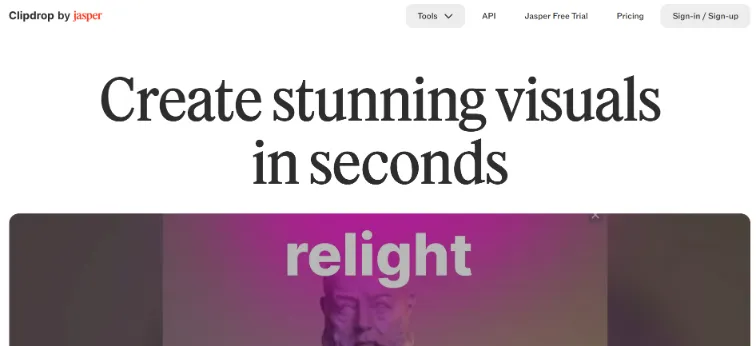
This is the ultimate "quick-fix" tool. It does one thing, and it does it fast.
- Why it wins: It’s clean, lightweight, and gets straight to the point.
- Best for: When you have a single shot that’s cropped way too close and you need to "uncrop" it in seconds without opening a heavy program.
7. Runway
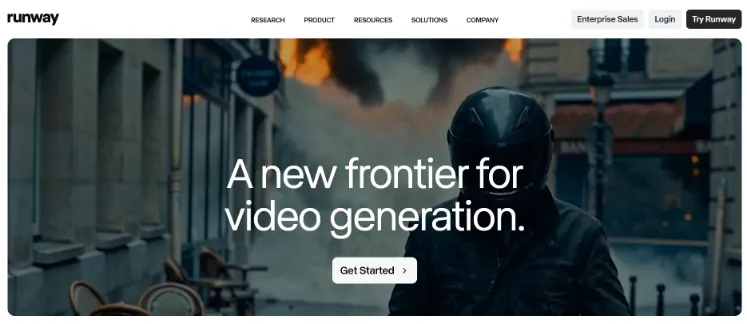
If your end goal isn't just a static image, but a video, Runway is the one to pick.
- Why it wins: It’s built for motion. The way it handles image expansion makes it super easy to transition into cinematic video effects later.
- Best for: Filmmakers, motion designers, and creators who need their images to eventually "come to life" on screen.
😘How to choose?
- Need an all-in-one commercial workflow? Go with Wann.ai.
- Need professional, layer-based control? Go with Adobe.
- Need speed for socials? Stick with Fotor or Canva.
- Feeling creative? Try OpenArt.
Pro-tip
When you’re expanding product shots, always use a clear prompt like: "Extend the background while keeping the product shape, texture, and shadows exactly as they are." It helps the AI focus on the environment rather than accidentally changing your product!
Ready to expand your canvas? Head over to Wann.ai and start experimenting. Your content is about to look a lot more professional.



'%20fill-opacity='.4'/%3e%3cpath%20d='M29.07%2012c.982%200%201.473%200%201.88.194.35.166.667.457.863.79.23.389.27.859.354%201.797.27%203.072.518%207.922-.297%2010.472-1.03%203.22-5.8%206.507-8.257%208.023-.477.295-.715.441-1.038.515a2.227%202.227%200%200%201-.868.006c-.324-.07-.565-.215-1.046-.504-2.512-1.51-7.435-4.811-8.478-8.04-.888-2.752-.622-7.52-.327-10.524.09-.914.135-1.372.365-1.757.196-.327.516-.617.86-.78.407-.193.89-.192%201.853-.192H29.07z'%20fill='var(--fill-0,%20%23FD7F11)'/%3e%3cpath%20d='M26.337%2017.75a.854.854%200%200%201%201.212-.11.872.872%200%200%201%20.11%201.218l-6.088%207.392a.855.855%200%200%201-1.2.122l-.07-.063-3.906-3.944a.871.871%200%200%201%200-1.222.853.853%200%200%201%201.216%200l3.24%203.268%205.486-6.66z'%20fill='var(--fill-0,%20white)'/%3e%3c/svg%3e)